templates-templates
Description
The Templates: Templates screen allows you to preview and edit templates which are installed in your Joomla! site.
How to access
- Select System → Templates Panel → Site Templates from the Administrator menu. Or...
- Select System → Templates Panel → Administrator Templates from the Administrator menu.
Screenshot
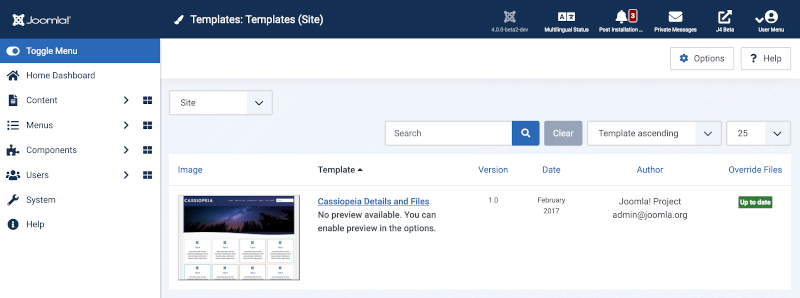
The Administrator and Site Templates screens use the same layout. The Site Template screen is illustrated here.
Column Headers
Click on the column heading to sort the list by that column's value.
- Image. A thumbnail of the template appearance.
- Template. The name of the template. Select the linked name to edit a templates files.
- Version. The version number of the item.
- Date. The date the item was created by the developer.
- Author. The developer of the template.
- Override Files. If the original template has not been updated since any overrides were created this column will display a green Up to date message. If the original template has been updated it will display a yellow Change found message.
List Filters
- Site or Administrator. Whether the template is a for Site or Administrator use.
Search bar. Near the top of the page you will see the search bar shown in the Screenshot above.
- Search by Text. Enter part of the search term and click the Search icon. Hover to see a Tooltip indicating which fields will be searched.To 'Search by ID' enter "id:x", where "x" is the ID number (for example, "id:19").
- Filter Options. Click to display the additional filters.
- Clear. Click to clear the Filter field and restore the list to its unfiltered state.
- Ordering. Shows the current list ordering field. 2 ways to change
the order:
- Select from the dropdown list. Ordering may be in ascending or descending order.
- Click a column heading. The column heading toggles between ascending and descending order.
- Number to Display. Shows the number of items in a list. Select from the dropdown list to change the number displayed.The default for a site is '20' but this may be changed in the Global Configuration.
Toolbar
At the top of the page you will see the toolbar shown in the Screenshot above. The functions are:
- Options. Opens the Options window where settings such as default parameters can be edited.
- Help. Opens this help screen.
Related Information
- To edit templates styles: Template Manager: Styles